Nov 19 2025
The first thing we'll need is our GUI application. Install it using this command:
sudo apt install gnome-disk-utility
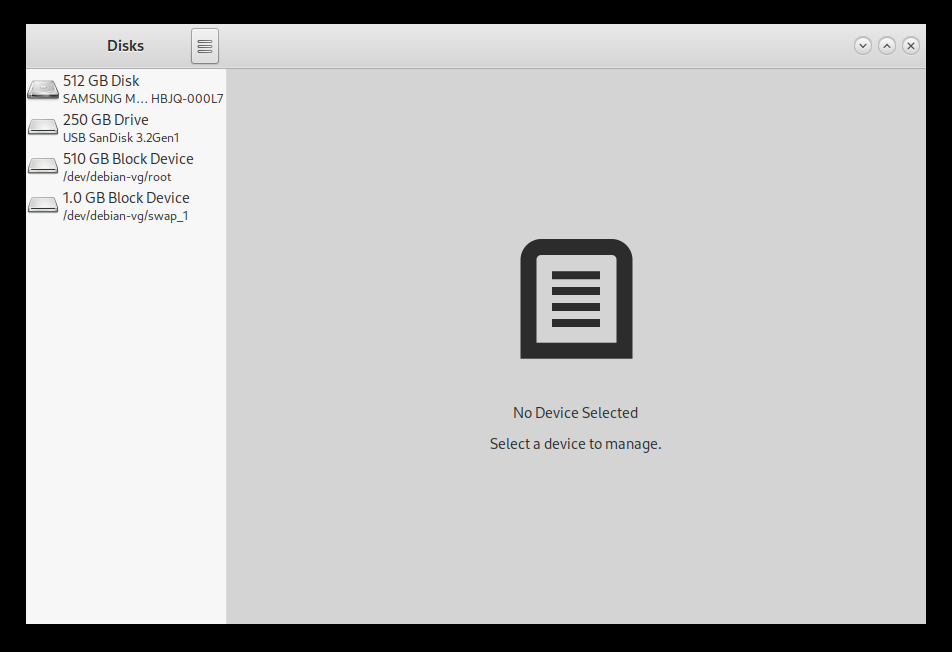
Once it is installed, open up the application.
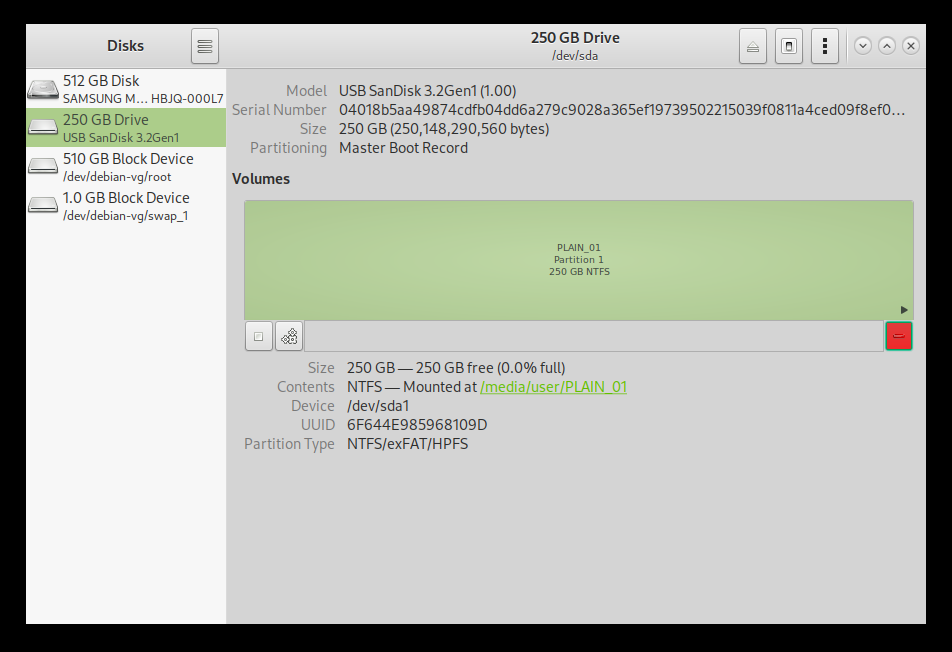
Select the drive on the left representing your USB flash drive.
Click the three small gears labeled "Additional partition options" and select "Format partition".
Create a name for the volume. Tick "Ext4" and check the "LUKS" box. Select "Next".

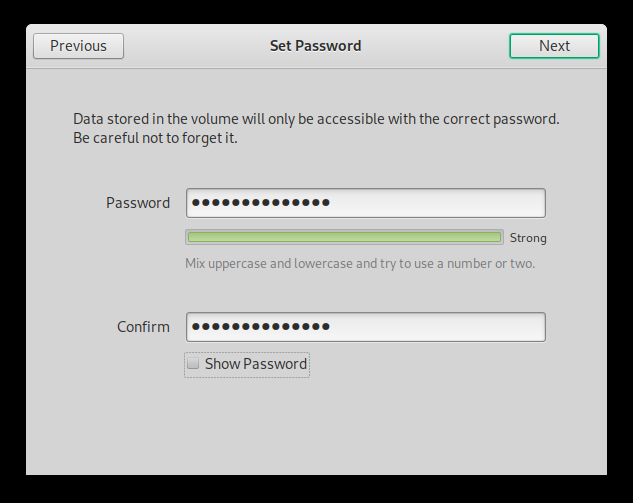
Create a sufficiently strong password for the type of data you plan to store.
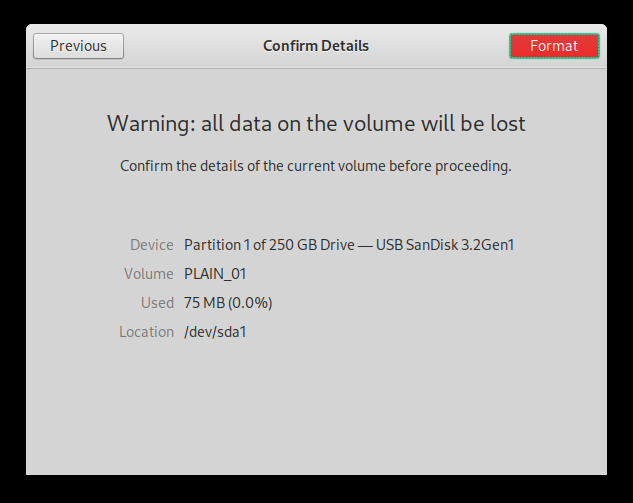
Select "Format".
See your shiny new LUKS encrypted Ext4 USB flash drive?
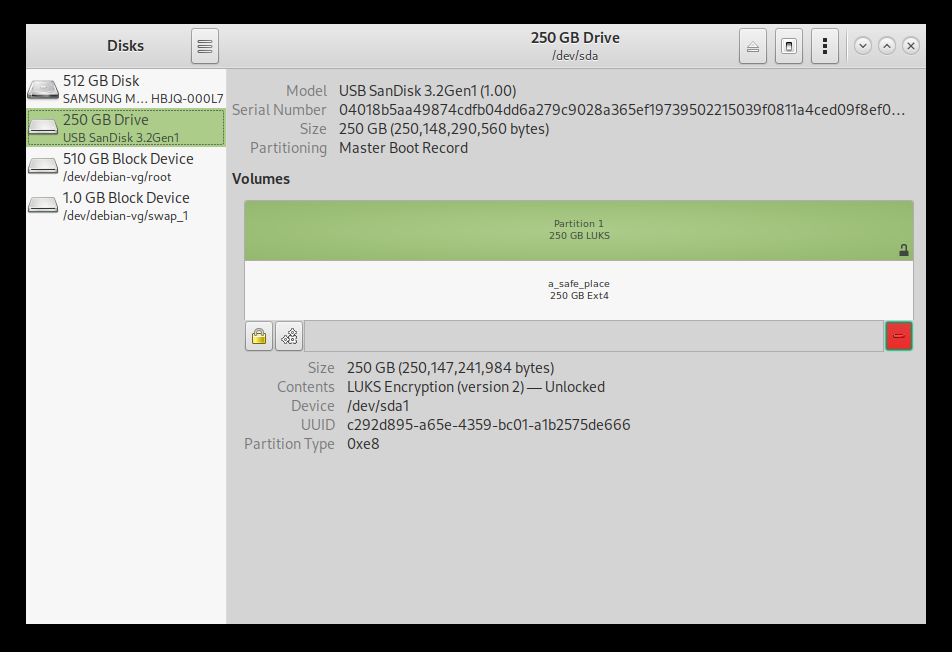
Now you can store top secret data so long as no one discovers what the password is.
